What it does
Slack takes the notifications that normally wait for you inside the VeloCMS dashboard and also posts them to a Slack channel. You paste one incoming webhook address from your own Slack workspace, tick the kinds of notification you want, and press a button to send a test message. From then on, when a selected notification is created, a formatted message follows in Slack with a headline starting with VeloCMS, the category, the detail text, a marker for severity and, when the notification points somewhere, an Open in VeloCMS link to the right admin page. The dashboard copy is always still there.
Who it's for
Shop owners and small teams who already live in Slack and do not want to keep a dashboard tab open to notice a new order, a new member or a comment waiting for review. It suits a team that wants a shared channel where everyone sees the same alerts. It is also a light way to get security and billing warnings in front of the right person quickly, without building any automation.
How it works
In Slack, create an app for your workspace, switch on Incoming Webhooks, add a new webhook and choose the channel. Copy the webhook address, which begins with https://hooks.slack.com/services/.
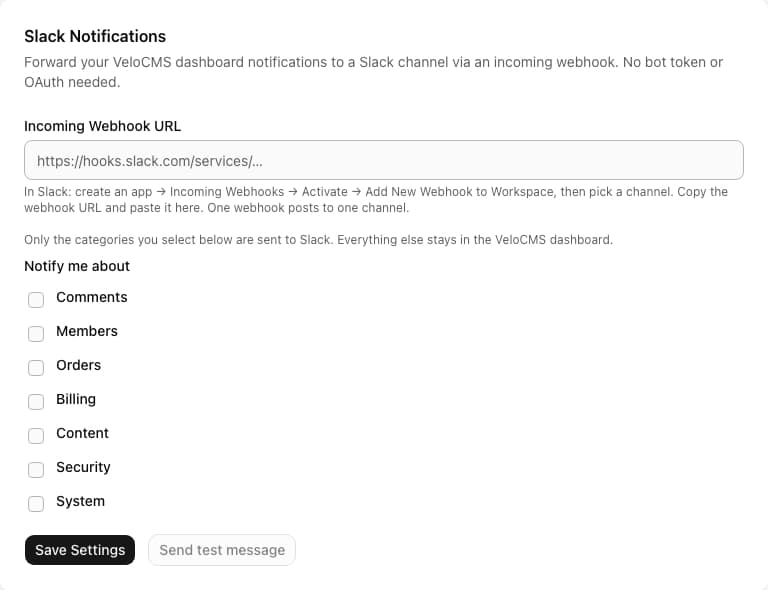
In VeloCMS, open the Slack plugin, paste the address, and tick the categories you want: comments, members, orders, billing, content, security or system. Save. The address is stored encrypted.
Press Send test message. VeloCMS posts a short test to your channel using the saved address and tells you whether Slack accepted it.
When VeloCMS creates a notification in one of your ticked categories, it sends the message to Slack in the background, right after the dashboard entry is saved.
Settings you configure
- Incoming Webhook URL
- The address Slack gave you for one channel. It must start with https://hooks.slack.com/services/. One webhook posts to one channel. It is stored encrypted and shown back to you masked. Leave the masked value untouched when you save other changes and the stored address is kept.
- Notify me about
- Seven checkboxes: Comments, Members, Orders, Billing, Content, Security and System. Only the ones you tick are sent to Slack. None are ticked at first, so nothing is sent until you choose.
- Send test message
- Sends a real test message to the saved address. It reports an error if nothing is saved yet, if the address is not a Slack webhook, or if Slack refuses it.
What it can access
For each notification you forwarded, the plugin reads its title, body text, category, severity and the link to the related admin page. It sends these to hooks.slack.com and nowhere else, using a POST request. It never reads your Slack messages or members. Your webhook address is stored encrypted, and anyone who has it can post to that channel, so treat it like a password.
Permissions
- Store your Slack incoming webhook URL encrypted
- Make network calls to hooks.slack.com to post notification messages
- Read the title, body, and link of dashboard notifications you choose to forward
External network access
This plugin makes requests to the following domains:
hooks.slack.com
Capabilities
network:fetchui:settings
Screenshots
Honest limits
It is one way. VeloCMS posts to Slack, and nothing you do in Slack reaches your site. There are no buttons, replies or commands.
One webhook means one channel. To split alerts between channels you would need a different setup in Slack itself.
You choose whole categories, not individual events. Plugin and theme notifications are not offered for forwarding.
The message wording follows the dashboard notification and is in English.
If Slack is unreachable or rejects the message, your dashboard notification is still saved and nothing is retried.
A failed or successful send is written to the activity log only for notifications tied to a member, an order or a post. Others are logged internally and leave no visible record.
Frequently asked questions
Do I need a Slack bot token or an OAuth connection?
No. The plugin only uses a Slack incoming webhook that you create yourself in your own workspace. Nothing is installed from VeloCMS into Slack.
Will I stop getting notifications in the dashboard?
No. Slack is an extra copy. Every notification is still saved in the dashboard first, whether or not the Slack message goes through.
Why did nothing arrive after I saved the address?
Check that at least one category is ticked, since none are on by default. Then use Send test message to see whether Slack accepts the address.
Can I send alerts to more than one channel?
Not from one plugin setting. The address you save posts to a single channel, and the categories you tick all go to that same place.
Related plugins
Specifications
- Category
- Social
- Price
- Included
- Version
- 1.0.0
- Source
- First-party
Browse more integrations
58 free first-party integrations available.