What it does
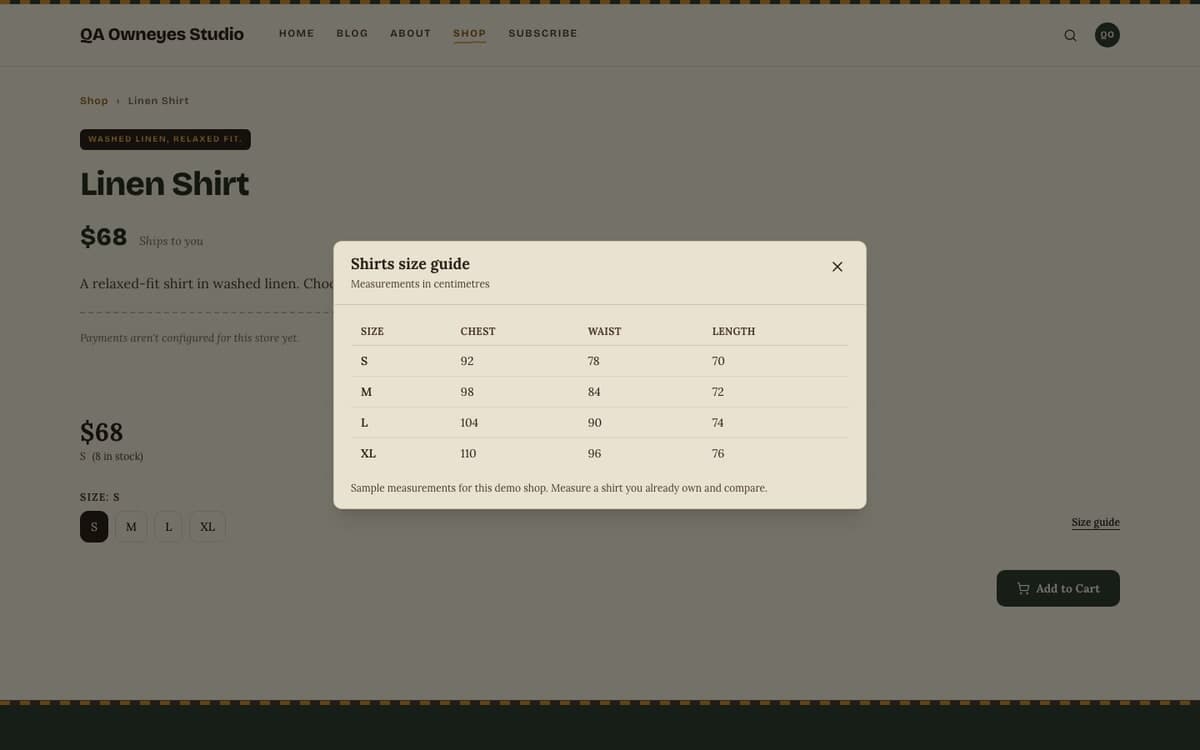
Size Chart adds a "Size guide" link to your product pages. A shopper who clicks it sees a pop-up window with your measurement table, and can close it with the close button, the Esc key or a click outside it. You build each chart yourself in the plugin's settings: a name, the column headings, the rows, a unit (centimetres or inches) and an optional note under the table. Every part can carry an Arabic version for the Arabic site. You then choose where a chart applies: to chosen products, to whole categories, or to every product. Nothing is shown on a product until a chart applies to it.
Who it's for
Shops that sell clothing, shoes, rings, frames or anything where the size is the main reason a shopper hesitates or returns an item. A clear table that opens in one click answers the question before it becomes a support email. It also suits shops that serve Arabic and English visitors, because each chart can carry both languages.
How it works
Make sure the plugin is on. For a store it is on from the start, and it shows nothing until you create a chart.
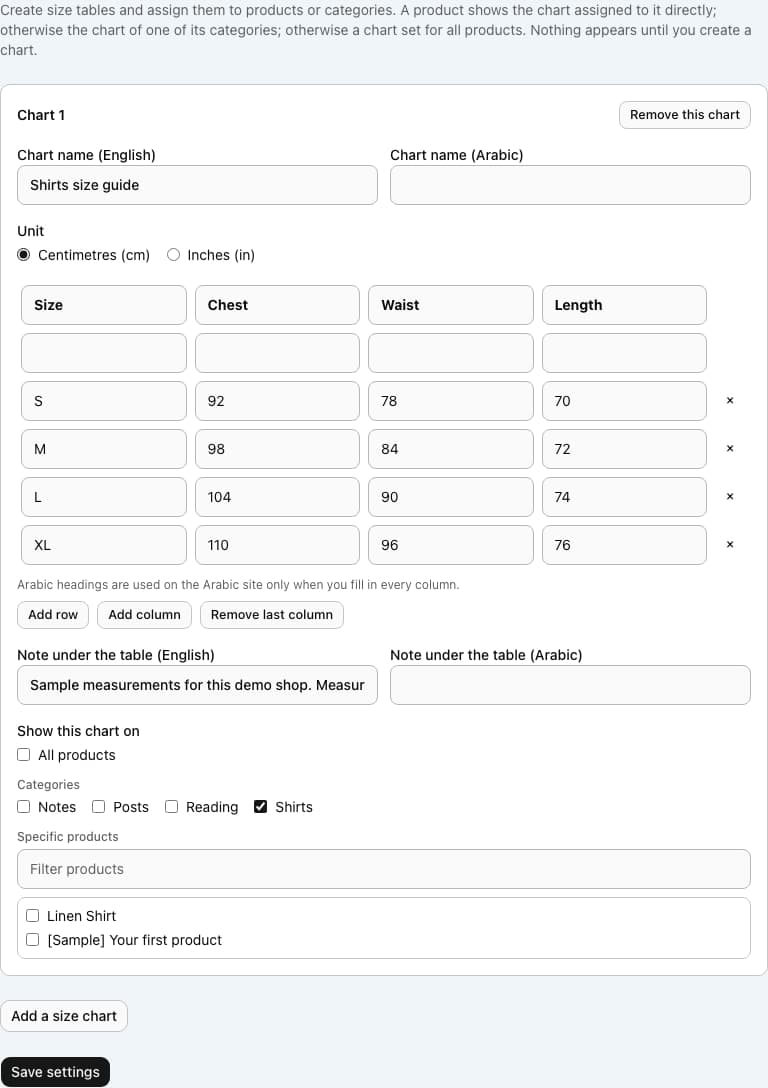
Open the plugin's settings, choose Add a size chart, and type a name, the column headings and the rows. Pick centimetres or inches and add a note if you like.
Under Show this chart on, tick All products, one or more categories, or specific products. Save.
On a matching product page, a Size guide link appears next to the size option. If the product has no size-type option, the link is placed above the options.
The shopper clicks the link, reads the table in a pop-up and closes it to return to the product.
Settings you configure
- Chart name (English) and Chart name (Arabic)
- The title of the pop-up. The Arabic name is used on the Arabic site when you fill it in; otherwise the English name is shown.
- Unit
- Centimetres or inches. It sets the line under the title, such as Measurements in centimetres. The plugin does not convert numbers: you type the values yourself.
- Columns and rows
- Up to 12 columns and 30 rows, with up to 24 characters in a cell. The first column is read as the row heading, usually the size.
- Arabic column headings
- Optional. Fill in a heading for every column; the Arabic site then shows them in place of the English headings.
- Note under the table (English and Arabic)
- Up to 400 characters, for advice such as how to measure.
- Show this chart on
- All products, any of your categories, or specific products from an alphabetical picker with a filter box.
What it can access
The plugin reads your products and categories so you can pick where each chart applies, and it stores the charts you type in its own settings. It contacts no outside service and needs no key. Shoppers only see the table, its title and its note. Chart text is public once it is on a product page.
Permissions
- Read products and orders
- Add settings sections
Capabilities
commerce:readui:settings
Screenshots
Honest limits
You can keep up to 10 charts. A chart can hold up to 12 columns and 30 rows, and a cell holds up to 24 characters.
A product shows one chart. The one assigned to the product itself wins, then one assigned to its category, then a chart set for all products. If two charts match at the same level, the first in your list is used.
A chart with no column heading or no rows is ignored, and the shopper sees no link.
You assign a chart to up to 300 products and 50 categories, and the picker lists the first 500 products alphabetically.
The plugin does not convert between centimetres and inches and does not recommend a size. It shows the table you typed.
Frequently asked questions
Where does the link appear on the page?
Next to the size option of the product, at the end of the line. If the product has no option that looks like a size, the link sits above the options.
Can I show different charts for men's and women's clothing?
Yes. Create one chart per group and assign each to its own category or products. A product shows the most specific chart that applies to it.
Does it work in Arabic?
Yes. Each chart takes an Arabic name, Arabic headings and an Arabic note. Numbers stay left to right inside the Arabic table so they read correctly.
Why do I not see the link on my product?
No chart applies to that product yet, or the chart has no heading or no rows, or the product has no options so the selector is not shown. Check the assignment in the settings.
Related plugins
Specifications
- Category
- Commerce
- Price
- Included
- Version
- 1.0.0
- Source
- First-party
Browse more integrations
58 free first-party integrations available.